Settings
Roat Pkz has three places to change settings. The Quest tab's Settings sub-tab holds the Player Settings, which are saved on your account, and the Client Settings, which are saved by your game client. The Chat Settings window chooses which messages and broadcasts show in your chat box. The OSRS-style Settings tab handles display, audio, chat and controls, with a few Roat additions. Keyboard shortcuts and F-keys have their own page: Keyboard shortcuts.
Overview
Opening the settings
| Settings | How to open them |
|---|---|
| Player Settings and Client Settings | Quest tab › Settings (the wrench). |
| Chat Settings | Player tab › Knowledge Center › Configure Chat; Quest tab › Settings › Configure Chat; or ::chatconfig.
|
| Risk Defence menu | Click Risk Defence in Player Settings, or type ::riskdefence.
|
| Settings tab | The wrench in the bottom row of side tabs. It opens with F11 in the Roat F-key layout and F10 in the OSRS layout. |
Player Settings
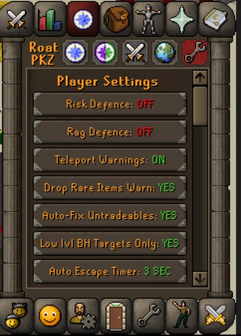
| Setting | Default | What it does |
|---|---|---|
| Risk Defence | OFF | Stops players who risk less than you from attacking you in dangerous PvP zones. Click it for a menu; see below. |
| Rag Defence | OFF | When ON, new accounts can't attack you, and you can't attack them. A new account is one with 180 minutes (3 hours) of playtime or less and no donator rank. You can only turn it on in a safe zone. ::ragdefenceon and ::ragdefenceoff do the same.
|
| Teleport Warnings | ON | Asks you to confirm before a teleport takes you somewhere dangerous, such as the Wilderness. Turn it OFF to skip most of these questions; a few event and boss teleports always ask. |
| Drop Rare Items Warn | YES | Asks Are you sure you want to drop this item? before you drop a rare item (except food and potions). The question shows the item's value in PKP and reminds you that dropped items become visible to everyone after 60 seconds. |
| Auto-Fix Untradeables | NO | When YES, untradeable items you keep on death that would break (such as void knight equipment, the avernic defender, ferocious gloves and the infernal cape) are repaired straight away, paid with Pk Points from your Quest tab, inventory or bank. If it's NO, or you can't afford it, the item breaks and you have to fix it yourself. You can also switch this in the Items Kept on Death window. |
| Low lvl BH Targets Only | YES | While you're in level 5 Wilderness or lower, you only get Bounty Hunter targets who are also in level 5 Wilderness or lower. Turn it off to get targets from the whole Wilderness. |
| Auto Escape Timer | 3 SEC | Click to step through 3, 5, 8 and 2 seconds. If the server gets nothing from your client for that long (for example because your connection dropped) while you're in a PvP zone, or a dangerous PvM area you can't log out of, it tries to save you: it eats, drinks potions, turns on Protect Item, runs to safety and tries to teleport, then logs you out. It doesn't apply in minigames or the Duel Arena. |
| Damage XP Drops | ON | ON shows the damage you dealt in your combat XP drops. OFF shows the XP you gained instead. |
| Yell Chat | ON | OFF hides yells from other players. Sending a yell yourself switches it back ON. ::muteyell and ::unmuteyell do the same.
|
| Vial Smashing | OFF | ON smashes the empty vial when you finish a potion, so vials don't fill your inventory. ::vialsmash switches it too.
|
| Shop Warning | ON | Asks you to confirm before you buy something expensive from a shop: items worth 500 PKP or more, or a large amount of the shop's currency. |
Risk Defence
Risk Defence lets you risk items and Pk Points in the Wilderness without players who risk little or nothing attacking you. While it's ON and you're in a PvP zone where you lose items, you're put in a tier based on your risk. Your risk is what you would lose if you died right now, counted as if you had the Protect Item prayer on.
| Tier | Your risk (PKP) |
|---|---|
| 1K+ | 1,000 – 4,999 |
| 5K+ | 5,000 – 24,999 |
| 25K+ | 25,000 – 49,999 |
| 50K+ | 50,000 – 249,999 |
| 250K+ | 250,000 or more |
- To attack you, a player has to risk at least your tier's lowest amount.
- If you attack someone who risks less than your tier, you're asked to lower your tier to match them for that fight, or to switch Risk Defence off if they risk under 1,000 PKP. Choosing don't ask again turns Risk Defence Warnings off, after which it lowers by itself.
- Your tier is worked out again after a minute out of combat, and when you log in again.
- It never applies in multi-combat areas or in zones where you keep your items.
- Under 1,000 PKP risk you get no tier.
Clicking Risk Defence in Player Settings (or typing ::riskdefence) opens a menu: View my Risk Defence shows your status and current risk, Risk Defence switches it on or off, Risk Defence Warnings switches the warnings, and What is Risk Defence? explains it. The Player Settings line shows your status: OFF; SAFE-ZONE (on, but you're not in a PvP zone); NOT IN MULTI (you're in a multi-combat area, where it doesn't apply); OFF (NO TIER) (you risk too little for a tier); or ON with your tier.
Good to know:
- You can't switch Risk Defence on while you're inside a PvP zone where you lose items.
- Some Wilderness monsters can't be fought with Risk Defence active: attacking one asks you to switch it off for now. In a multi-combat area it switches off by itself.
- You can't train skills in the Wilderness while Risk Defence is active.
::myrisksays your current risk in public chat.
See Risk defence for more.
Client Settings
Below Player Settings in the Quest tab are the Client Settings. They're saved by your game client, not your account, so on another computer you'll need to set them again. The list starts with three buttons:
- Configure Chat opens Chat Settings.
- Customize F-Keys opens the Keybinding (F-keys) window.
- Customize Shortcuts opens Roat Pkz Keyboard Shortcuts.
The rest are switches. Click one to move to its next value.
| Setting | Values (default first) | What it does |
|---|---|---|
| X10 Hits | OFF, ON | Shows hitsplat numbers ten times bigger, so a hit of 25 shows as a number from 250 to 259. It only changes what you see. |
| Bounty Hunter Skulls | OFF, ON | Shows skulled players with Bounty Hunter-style skulls instead of the normal ones. |
| Swap Raid Prayers | OFF, BOTH, RIGOUR, AUGURY | Swaps the places of Rigour and Eagle Eye (or Deadeye), and of Augury and Mystic Might (or Mystic Vigour), in your Prayer tab. RIGOUR or AUGURY swaps only that prayer. |
| HP Overlay | ON, OFF | Shows the name and health of whatever you're fighting at the top left of the screen. |
| Right Click Clan Members | NO, YES | YES moves the Attack option on members of your clan chat to the right-click menu, so you can't attack them with a left click. |
| Right Click Monsters | NO, YES | YES moves the Attack option on monsters to the right-click menu. |
| Freeze/Veng Timers | YES, NO | Shows on-screen timers for effects such as freezes and Vengeance. |
| Chat Flame Filter | DISABLED, ENABLED | Hides swear words in chat behind stars. Type ::edit-curse-list to add your own words to the list, then ::reload-curse-list.
|
| Tinted Hitsplats | YES, NO | Shows other players' hits on a monster in darker, tinted hitsplats, so you can tell them apart from yours. |
| Red Pk Skulls | YES, NO | YES shows the coloured skull of a player's kill streak. NO shows the plain skull instead for kill streaks under 100. |
| Player Indicators | DISABLED, NAME, NAME+HEAD | NAME colours player names in right-click menus: purple for clan members, green for friends and red for everyone else, with clan rank icons. NAME+HEAD also shows those coloured names above players' heads. It can't be used while RuneLite's own Player Indicators plugin is on. |
| Randomize Username | NO, YES | Shows a random name instead of yours in your own chat box. Handy for screenshots and streaming; other players still see your real name. |
| Loot Item Images | DISABLED, RARE, ALL | Adds the item's picture to the Take option on items on the ground: only for rare items, or for all items. |
| Max Hit Splat | ENABLED, DISABLED | Shows a special hitsplat for max hits. DISABLED shows a normal hitsplat instead. |
| Donator Orb | ENABLED, DISABLED | Shows or hides the donator orb next to the minimap. |
| Prayer Tooltips | ENABLED, DISABLED | Shows a tooltip describing each prayer when you hover over it in the Prayer tab. |
You can also switch Swap Raid Prayers by right-clicking the Prayer tab icon (Swap Rigour & Augury) or by typing ::swapprayers; both switch between OFF and BOTH.
Chat Settings
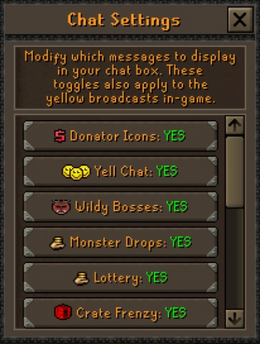
::chatconfig, Configure Chat in the Player tab, or Configure Chat in Quest tab › Settings. Like Client Settings, your choices are saved by your game client.| Filter | What NO hides |
|---|---|
| Donator Icons | The donator rank icons next to players' names in chat. Staff icons still show. |
| Yell Chat | Yells. |
| Wildy Bosses | Messages about Wilderness bosses. |
| Monster Drops | Broadcasts of monster drops. |
| Lottery | Lottery messages. |
| Crate Frenzy | Crate Frenzy event messages. |
| Chest Event | Messages about the Wilderness Chest, the Gold Wilderness Chest and Treasure Hunt. |
| Key/Crate Drops | Broadcasts of Larran's key drops and high-tier PvP crate drops. |
| Helpful Tips | Tips. |
| Minigame Messages | Minigame and event messages, such as tournaments and Last Man Standing. |
| Shooting Star | Shooting Star messages. |
| Bloodlust | Bloodlust messages. |
| HP Event | HP event messages. |
| Drop Party | Drop party messages. |
The Yell Chat filter is separate from the Yell Chat Player Setting: the filter hides yells on this client only, while the Player Setting stops yells being sent to your account at all.
Settings tab
The Settings tab is the wrench in the bottom row of side tabs. It works like the OSRS one, with four sections chosen by the buttons at the top: Display, Audio, Chat and Controls. The Accept Aid and Run buttons sit along the bottom.
| Section | What you can change |
|---|---|
| Display | Zoom, brightness, Fixed or Resizable screen, and Advanced Options: transparent side panel, Remaining XP tooltips, roof removal, data orbs, transparent chat box and the side-stones arrangement. The transparent and side-stones options need Resizable mode. |
| Audio | Three volume bars. |
| Chat | Split private chat. |
| Controls | Number of mouse buttons, mouse camera, shift-click drop and the attack option priority (Left-click where available or Always right-click). |
Zoom lock (Display): the zoom icon next to the zoom slider locks your mouse-wheel zoom, so scrolling no longer moves the camera in or out. Click it again to unlock.
Set F-Keys (Controls): opens the Keybinding (F-keys) window.
Open Store (bottom row): opens the donation store in your browser. See Donating.
Tips
- Player Settings and your keyboard shortcuts are saved on your account. Client Settings, chat filters and F-keys are saved by your game client, so set them again on a new computer.
- If new accounts keep attacking you, turn on Rag Defence in a safe zone. You can also add players to your blacklist.
- Turning on Auto-Fix Untradeables saves you a trip to repair your void, defender or cape after a death, as long as you have the Pk Points.
- With Vial Smashing on, finished potions leave no vial behind, which keeps your inventory clear in long fights.
- Randomize Username only changes your own screen. It's useful for screenshots and streams.
Commands
| Command | What it does |
|---|---|
::chatconfig |
Opens Chat Settings. |
::riskdefence, ::riskdef |
Opens the Risk Defence menu. |
::myrisk |
Says your current risk in public chat. |
::ragdefenceon, ::ragdefenceoff |
Turns Rag Defence on or off. |
::muteyell, ::unmuteyell |
Turns the Yell Chat setting off or on. |
::vialsmash |
Turns Vial Smashing on or off. |
::swapprayers |
Switches Swap Raid Prayers between OFF and BOTH. |
::edit-curse-list, ::reload-curse-list |
Edits and reloads the Chat Flame Filter's word list. |
::keybinds, ::fkeys |
Opens Keyboard shortcuts or the F-key window. |
See also
| Side tabs | |
|---|---|
| Your account | |
| Getting around | |
| Knowledge Center | |
| Rewards | |
| Activities | |