Quest tab
The Quest tab is the third side tab in the top row, the blue compass. Roat Pkz has no quests, so the tab is titled Roat PKZ, and hovering over it shows Server Data. Five buttons at the top switch between its sub-tabs: Main, Achievements, Kit, Server Events and Settings. The Main sub-tab shows your PvP stats and your points, and it's where you withdraw points as tradeable tickets.
Overview
Opening the Quest tab
Click the blue compass, the third tab in the top row. With the OSRS F-key layout it opens with F3. The Roat layout leaves it without a key, but you can give it one.
While you're in a raiding party lobby for the Chambers of Xeric, the Raiding Party tab takes the Quest tab's place.
The five buttons next to the Roat PKZ title choose the sub-tab:
| Button | Sub-tab | What it shows |
|---|---|---|
| Blue compass | Main | Server, PvP, points, Slayer and account information. |
| Purple compass | Achievements | Buttons for Achievements and Daily Tasks, and your favourite achievements. |
| Crossed swords | Kit | Your custom kit slots. |
| Globe | Server Events | Where and when each event and timed boss happens. |
| Wrench | Settings | Player Settings and Client Settings. |
Main
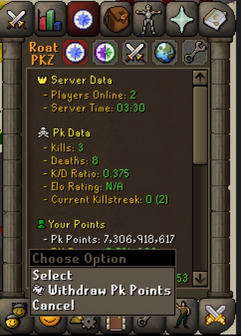
| Section | Lines | Clicking a line |
|---|---|---|
| Server Data | Server Status, Server Time | Tells you how many players and staff members are online, or the server time and your playtime. |
| Pk Data | Kills, Deaths, K/D Ratio, Elo Rating, Current Killstreak | Says the value in public chat. Elo Rating shows your Elo and your top percentage; Current Killstreak shows your best streak in brackets. |
| Your Points | Pk Points, BH Points, Vote Points, Skilling Points, Donator Points, Mini-Game Points, Mage-Arena Points | Says your points in public chat. Vote Points also says how many times you've voted. Right-click a line to withdraw those points. |
| Slayer Data | Task, Kills Left, Slayer Points | Task and Kills Left print your current Slayer task in your chat box, or tell you where to get one. Slayer Points says them in public chat. |
| Misc Data | Donator Rank, VIP Rank, Deal Streak, Credit Spend, Black Marks, Playtime | Donator Rank says your rank in public chat. VIP Rank opens the VIP window; if you have a VIP rank you can choose to say it in chat instead. Deal Streak opens the Deal Streak window. Credit Spend shows how much you've spent in the store and opens Credit Spend. Black Marks tells you how many you have: five black marks mean a permanent ban. Playtime shows the server time and your playtime. |
| Account Security | Email Set, Email Verified, Security Code Enabled | Opens the email set-up: add an email, re-send the verification email, or change it. A verified email also turns on your security code, an extra layer of protection for your account. ::setemail does the same.
|
Withdrawing points
Points in your Quest tab can be turned into tickets: stackable items you can trade to other players or keep in your bank.
- Right-click the line of the points you want: Pk Points, BH Points, Vote Points, Skilling Points, Donator Points or Mini-Game Points.
- Choose Withdraw (for example Withdraw Pk Points).
- Type an amount. The tickets go to your inventory and the Inventory tab opens.
You get the amount you typed, or less if you don't have that many points or they don't all fit in your inventory. Tickets stack, so you only need one free slot.
| Quest tab line | Ticket you get | |
|---|---|---|
| Pk Points |  |
Pk Point |
| BH Points |  |
Bounty Hunter Point |
| Vote Points |  |
Vote Point |
| Skilling Points |  |
Skilling Point |
| Donator Points |  |
Donator Point |
| Mini-Game Points |  |
Minigame Point |
- during a minigame;
- in a PvP zone, such as the Wilderness;
- in a dangerous PvM area, such as a boss instance, a raid or the Corporeal Beast's cave;
- while a trade, duel or gamble screen is open.
Slayer Points and Mage-Arena Points have no ticket, so they can't be withdrawn. They stay in your Quest tab and are spent at Krystilia and the Mage Arena shop.
To put points back, use Claim on the tickets in your inventory. You can't claim tickets while you're under attack or in a PvP zone. You don't need to claim them before shopping, though: shops take payment from your Quest tab points and from tickets in your inventory.
Achievements
The Achievements sub-tab starts with two buttons: Achievements opens the Achievements window and Daily Tasks opens your Daily tasks.
Below them are your favourite achievements. Each one shows its progress bar and reward, so you can follow your goals without opening the window. To add one, select it in the Achievements window and click Add to Favourites. You can have up to 20.
- Click a favourite to open it in the Achievements window.
- Move favourites up or down to change their order, or remove them. Removing one asks you to confirm.
- Until you add any, the sub-tab says Add some Achievements to your favourites, and they will show up here.
Kit
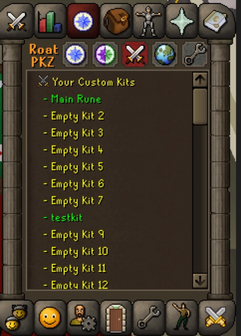
- Green: a saved kit. Click it to choose Load and the kit's name, or Edit Kit.
- Yellow (Empty Kit 2): an empty slot. Click it to open Custom kits on that slot.
- Red (Locked for ... Donators): a slot your donator rank hasn't unlocked. The icon shows the rank that unlocks it, and clicking it tells you which rank you need.
Server Events
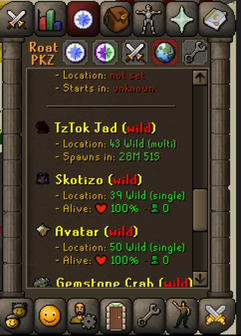
| Group | Events | The two lines show |
|---|---|---|
| Safe events | Tournament, Last Man Standing | The tournament's gear or the LMS reward, and when it starts (with the number of players once it's filling up). |
| Wilderness events | Wildy Chest, Gold Chest, Treasure Hunt, Bloodlust, Crate Frenzy, Shooting Star, Clan Warfare, HP Event | The location (Wilderness level, single or multi) and when it starts. Once it has started, how many players are there. |
| Bosses | TzTok Jad, Skotizo, Avatar, Gemstone Crab, Vote Boss, Divine Glod, and the holiday boss during holiday events | The location and the time until it spawns. While it's alive, its health and how many players are near it. |
Settings
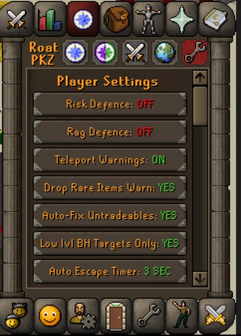
- Player Settings are saved on your account: Risk Defence, Rag Defence, Teleport Warnings, Drop Rare Items Warn, Auto-Fix Untradeables, Low lvl BH Targets Only, Auto Escape Timer, Damage XP Drops, Yell Chat, Vial Smashing and Shop Warning.
- Client Settings are saved by your game client. They start with buttons for Configure Chat, Customize F-Keys and Customize Shortcuts, followed by display options such as hitsplats, skulls and overlays.
Tips
- Be careful when clicking around the Main sub-tab: most PvP and points lines make your character say the value out loud in public chat.
- Points tickets are the way to give or trade points to another player. Withdraw them, then trade them like any item.
- You never need to claim tickets before shopping, because shops take payment from tickets in your inventory too.
- Pin the achievements you're working on as favourites to see their progress bars without opening the Achievements window.
- With 20 or more kit slots, scroll the Kit sub-tab to reach your later kits, or use Keyboard shortcuts to load kits 1 to 10.
Commands
| Command | What it does |
|---|---|
::kdr |
Says your kills, deaths, K/D ratio and Elo in public chat. |
::setemail |
Opens the email set-up, like the Account Security lines. |
::kits |
Opens Custom kits. |
::events |
Opens the Events schedule. |
::locs |
Opens the Event Locations map. |
::riskdefence |
Opens the Risk Defence menu, like clicking Risk Defence in Player Settings. |
See also
| Side tabs | |
|---|---|
| Your account | |
| Getting around | |
| Knowledge Center | |
| Rewards | |
| Activities | |